How to Prevent Jira Configuration Mistakes Before They Break Your Instance
Every Jira administrator has been there: you rename a custom field, save the change, and within minutes your inbox fills with support tickets. Dashboards are broken. Automations stopped firing. Filters return no results. A single change — one that seemed harmless — has cascaded into a production incident across dozens of teams.
This is not an exceptional situation. It is the default state for any Jira instance that has grown beyond a few dozen users. As the configuration becomes more complex, the risk of unintended consequences from a single change grows exponentially.
Why Jira changes are riskier than they appear
Jira’s data model is deeply interconnected. Custom fields are referenced by filters. Filters power dashboards. Dashboards are embedded in team portals and executive reports. Workflows are tied to screen schemes. Screen schemes are linked to issue type schemes. Issue type schemes define what appears in automation conditions.
When you change one element, you are not changing an isolated object — you are modifying a node in a graph with dozens or hundreds of dependencies. Most Jira administrators are unaware of the full extent of those dependencies because the native Jira administration UI does not show them.
The result is a class of incidents that are entirely preventable: configuration regressions caused by changes made without understanding their downstream impact.
The five most common breaking changes in Jira
1. Renaming or deleting a custom field
Custom fields are referenced by name in JQL filters. The moment you rename a field, every saved filter that uses the old name breaks silently. Users do not see an error — they simply get 0 results, which they may interpret as “no issues match” rather than “the query is broken.”
The same applies to deletion. Removing a custom field removes it from all screens and issue types, and invalidates every filter, automation, and report that referenced it.
2. Modifying a workflow
Workflow changes are among the highest-risk operations in Jira. A transition you remove may be the target of an automation rule. A status you rename may be hard-coded in a board column mapping. A condition you add may silently block issue progression for entire teams.
3. Changing screen or field configurations
Adding, removing, or reordering fields on a screen affects every project that uses the associated screen scheme. A field removed from the “Create” screen means users can no longer set that value at issue creation — which may break downstream automations that expect the field to be populated.
4. Modifying permission schemes
Permission changes can silently lock users out of projects or grant unintended access to sensitive data. Because permissions are not always tested immediately after change, these regressions often surface hours or days later.
5. Archiving or deleting a project
Projects are referenced in filters, board scopes, and automation rules. Deleting a project without scanning its dependencies can leave dozens of broken filters and automations across the instance.
A structured approach: analyse before you act
The only reliable way to prevent these incidents is to analyse the full dependency graph of any object before modifying it. This means answering, for every change:
- Which filters reference this object by name or value?
- Which dashboards depend on those filters?
- Which automations use this object in conditions, triggers, or actions?
- Which projects are connected through screen schemes, workflow schemes, or issue type schemes?
- Which boards will be affected?
Doing this manually is feasible for very small changes in simple instances. For anything else, it requires tooling.
How Impact Analysis for Jira automates this process
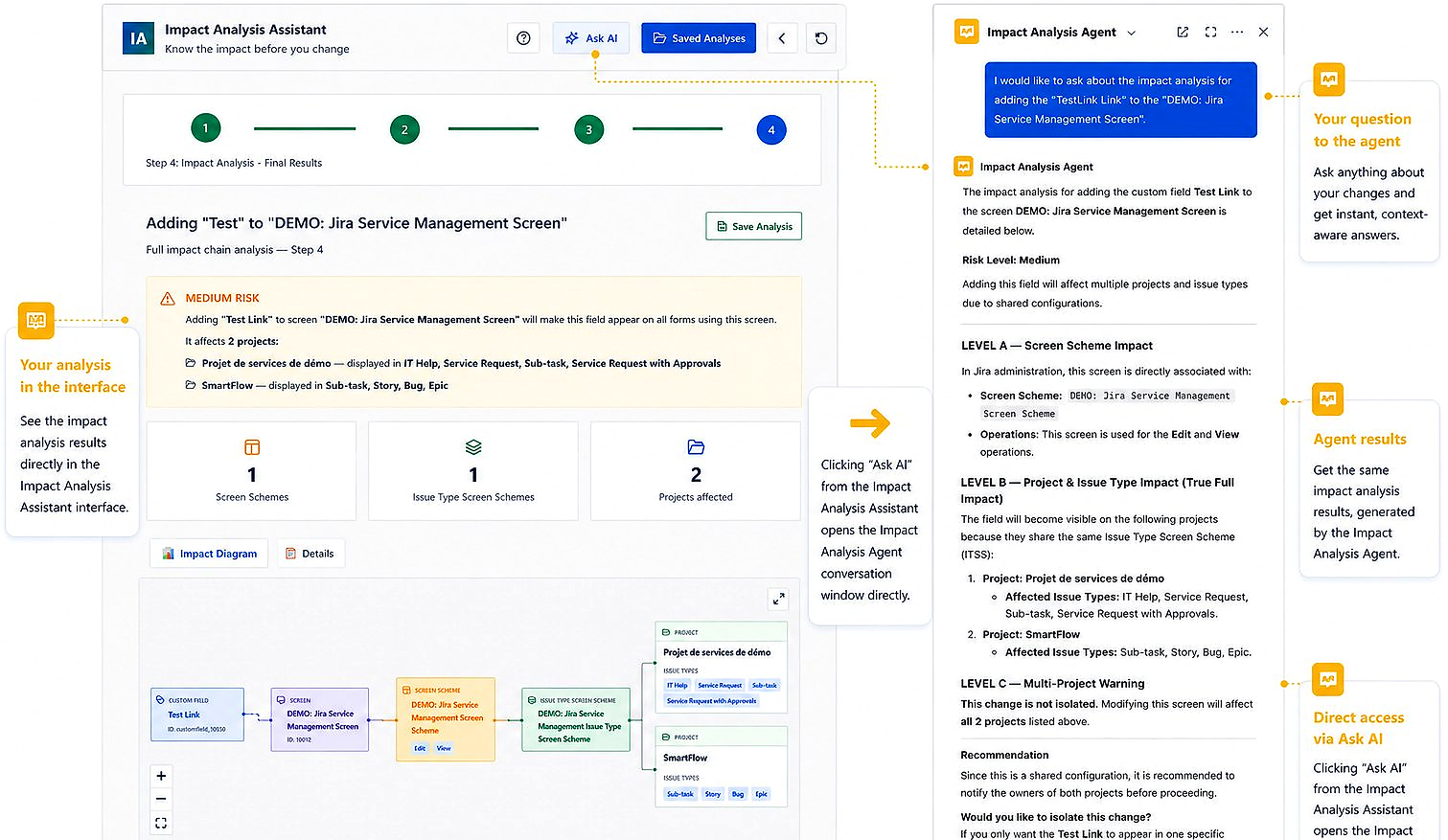
Impact Analysis for Jira is a Forge-native plugin that performs this dependency scan automatically. Select the object you plan to modify, run the analysis, and receive a structured report listing every element that will be affected — before you make the change.
The plugin covers custom fields, workflows, screens, permissions, automations, dashboards, filters, boards, and projects. You can save the pre-change analysis, make your modification, run the analysis again, and compare the two reports side-by-side to verify that no unintended regressions were introduced.
For teams subject to ITSM change management processes, this creates an audit-ready record of every configuration decision.
Building a governance-first culture
Beyond tooling, preventing configuration mistakes requires a process:
- Never make changes directly in production. Use a staging Jira environment to test changes first if one is available.
- Always run an impact analysis before any change. Even changes that seem simple may have surprising dependencies.
- Document your changes. A saved analysis before and after each change creates a natural audit trail.
- Communicate proactively. Before making a change that will affect user-facing dashboards or filters, notify the affected teams in advance.
Configuration mistakes are not inevitable. They are a symptom of making changes without enough information. With the right process and the right tooling, a Jira administrator can maintain a stable, governable instance — even as it grows in complexity.